🌐 日本語

No Installation Required.
Browser-Based
Graph Creation &
Statistics Tool
for Research Papers

Input data is processed in your browser; data content is not sent to servers.
Safe for confidential research data.

Open SVG Plotter Now

No download or account required

Share:
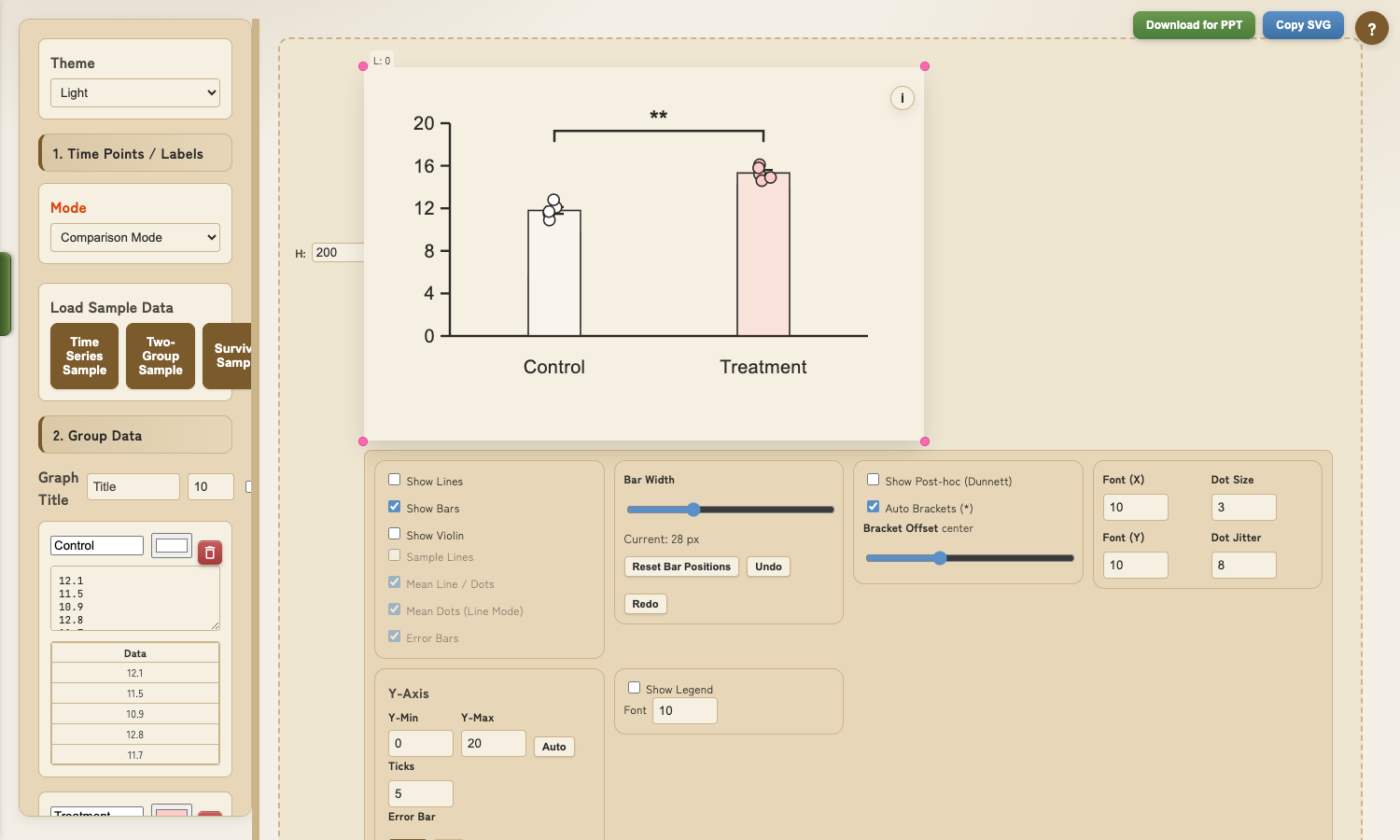
Latest SVG Plotter UI

Three Key Advantages

Complete Privacy

All processing happens in your browser.
Input data and file content are not sent to any server.

Instant Statistics

Automatically calculates Welch's t-test, ANOVA, Tukey, Dunnett, and more.
P-values and significance displayed instantly.

*Final verification with GraphPad Prism / R recommended

Publication-Quality Output

Export as SVG format for
easy editing in PowerPoint / Illustrator.
Vector graphics that never pixelate.

Features Overview

Three modes plus Explorer to handle diverse research data.
Drag-and-drop and numeric controls make layout adjustments intuitive.

Latest SVG Plotter UI

Supported Modes

  • Comparison: scatter + error bars + statistics
  • Time Series: line + scatter for trends
  • Survival: Kaplan-Meier + log-rank

Paste & Plot

Just paste data from Excel or CSV and get a chart instantly.

Explorer (Local Import)

Drag & drop CSV / TSV / Excel files. Folder tree, preview, column selection, and staging to groups are all GUI-based.
Great when you want to copy from the same file repeatedly.
File content is processed in the browser and not sent externally.

Interaction Tips

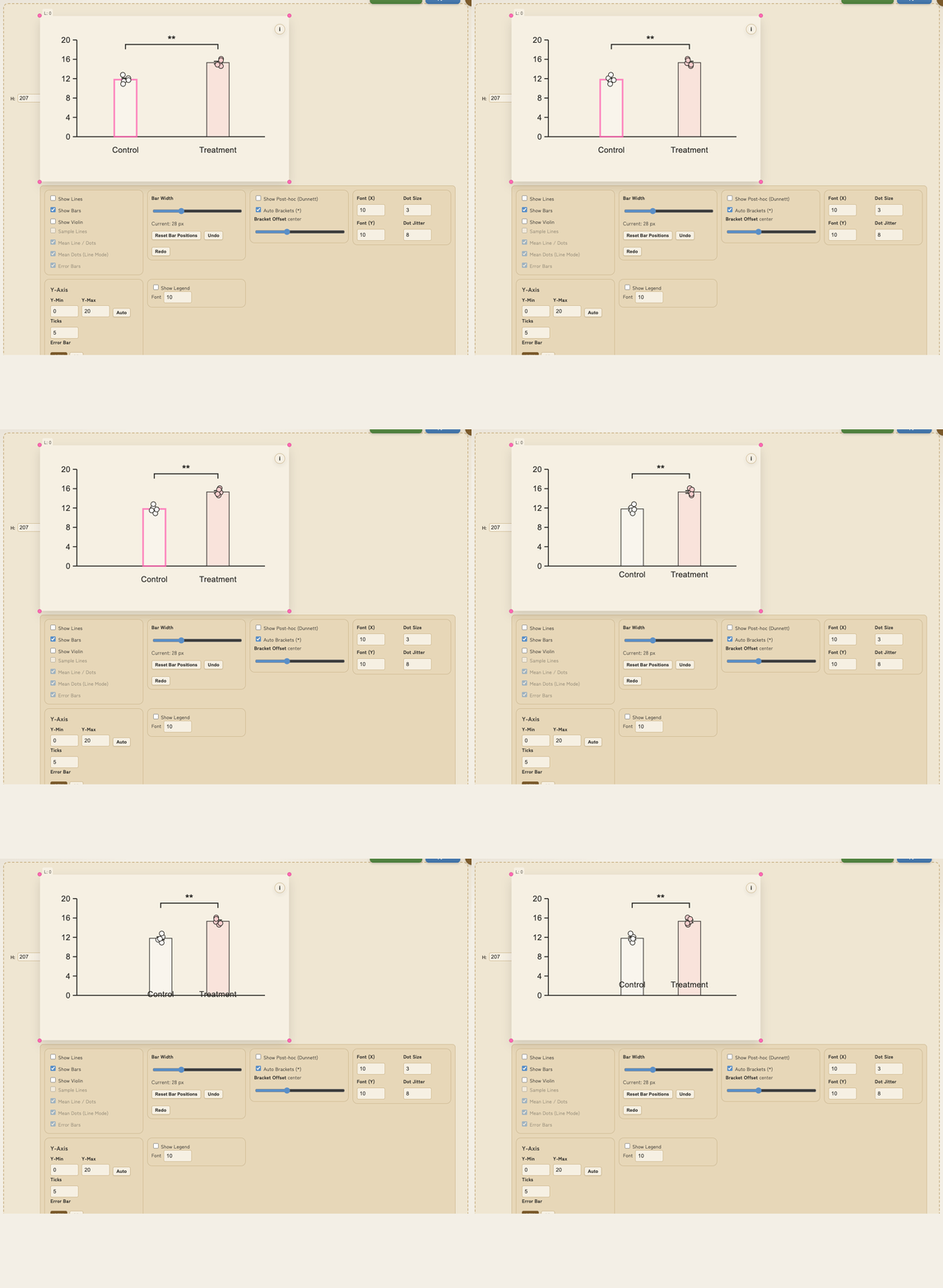
Use the “i” icon on the graph to see draggable elements and shortcuts.

Mode Samples

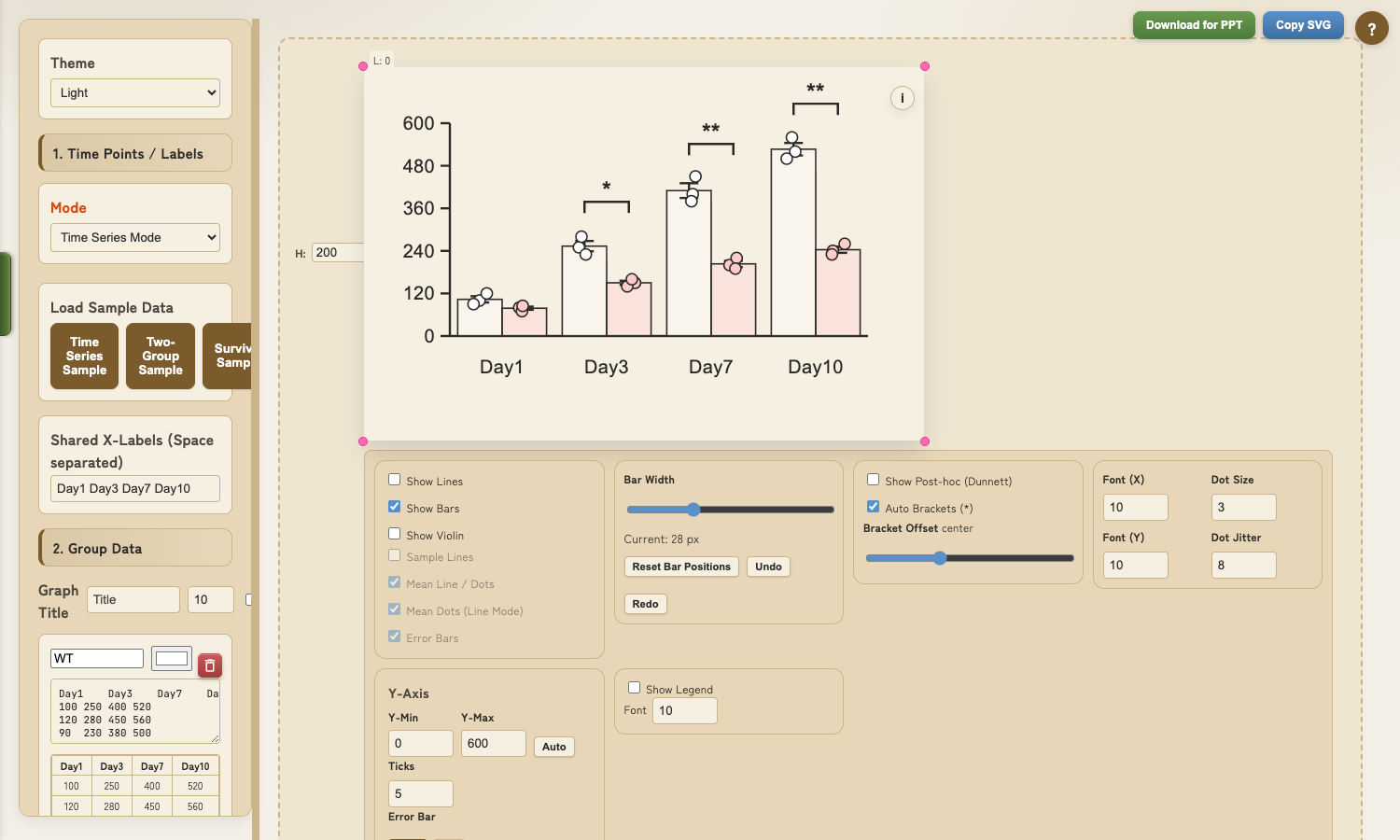
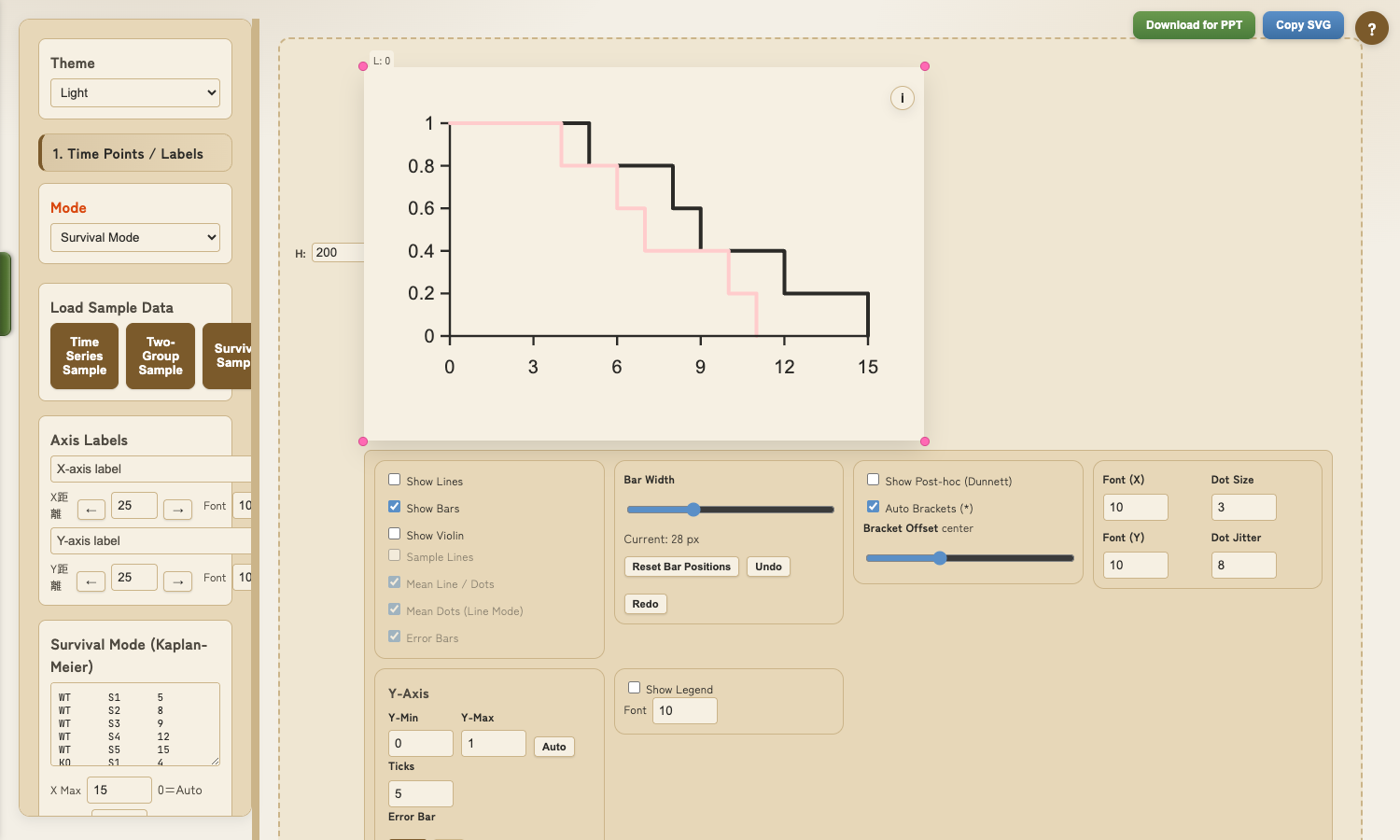
Example screenshots for Time Series and Survival (sample data).

Time Series sample

Time Series

Shows trends with line + scatter and optional per-time comparisons.

Survival sample

Survival

Kaplan-Meier curves with log-rank test results.

Fine-Tune Your Graphs

Rich customization options for publication-ready figures

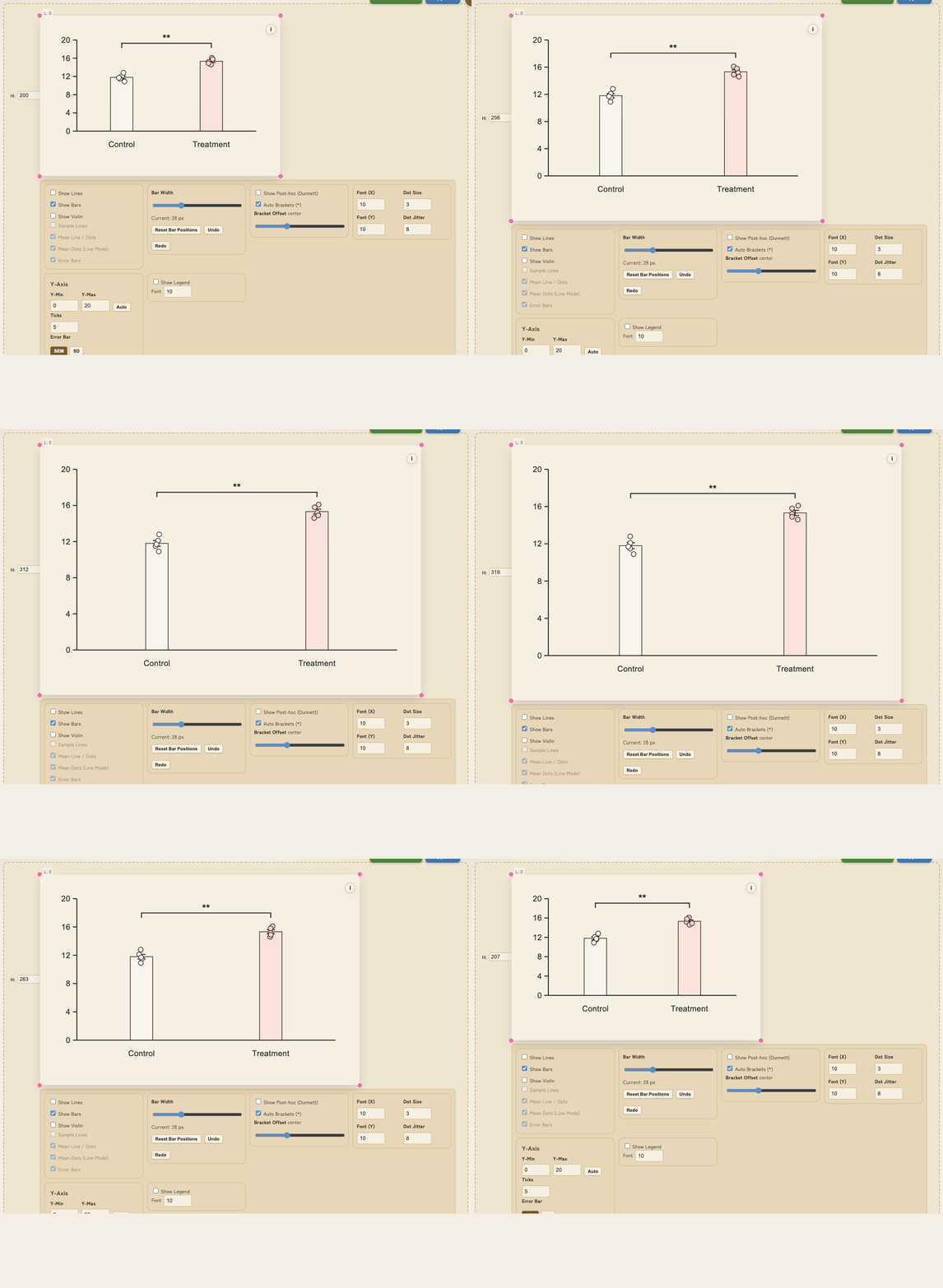
Zoom and scale adjustments
Dragging bars and labels

GIFs are captured from real UI interactions using sample data.

1 Drag to Reposition

Drag title, axis labels, and legend. You can also drag bars and sample labels.
Sample labels move vertically; bars move horizontally. Use the “i” icon for targets.

2 Axis & Tick Settings

Set Y-axis min/max values and tick intervals numerically.
Adjust scale using W/H inputs or corner handles.

3 Visual Customization

Control dot size, error bars, line thickness, bar width, and group spacing.
Bar positions are draggable and can be reset / undone / redone.

4 Save & Restore Settings

Export your customizations as a JSON file.
Apply the same settings to different datasets for consistent figures across your paper.

Using Explorer

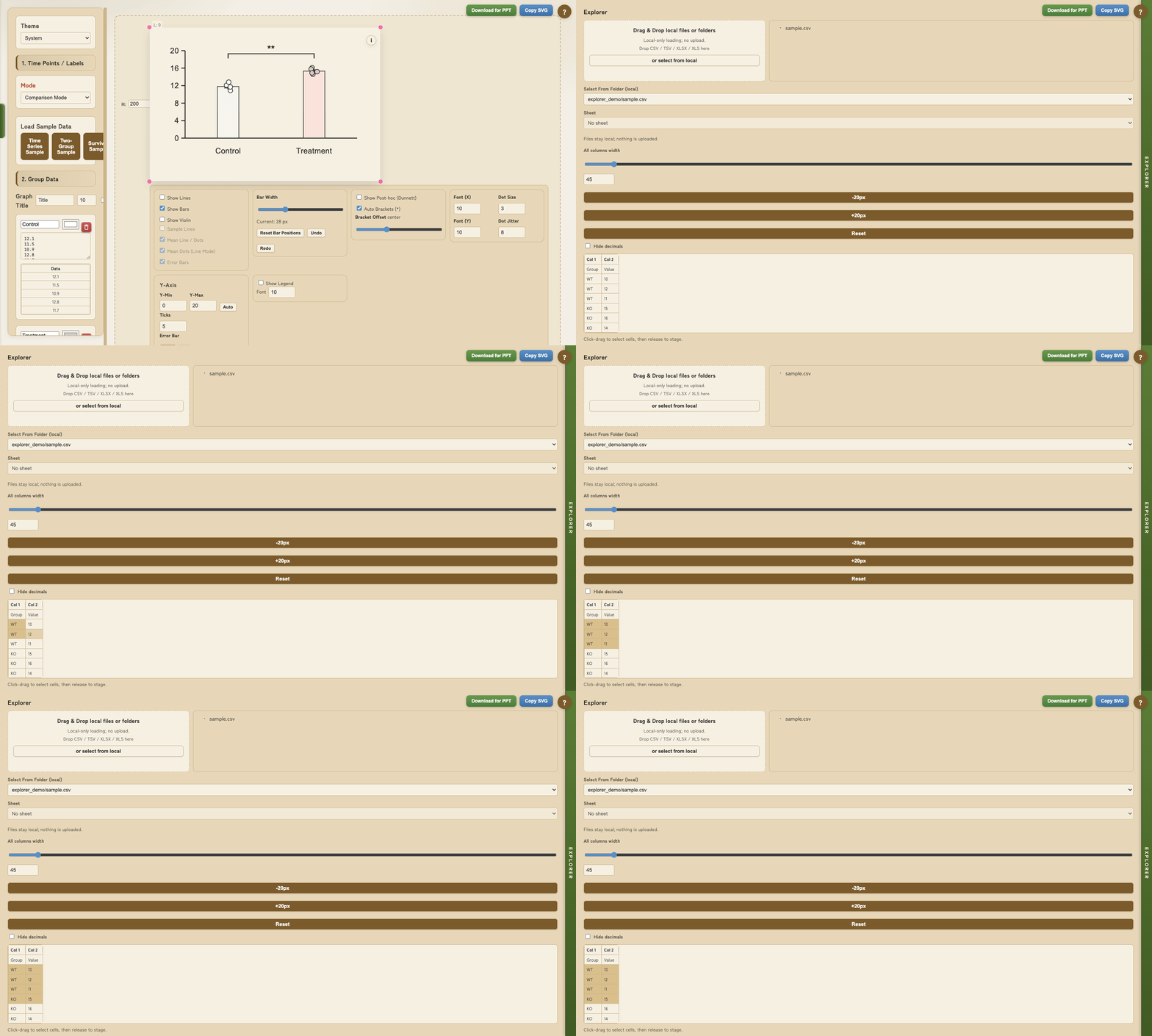
Load local CSV/TSV/Excel files, preview them, and stage selections into groups.

Load and preview data in Explorer

1 Import files or folders

Drag & drop, or use “select from local” to import files and folders.

2 Preview and select columns

Drag-select cells in the preview. Adjust column widths and decimal visibility as needed.

3 Stage to groups

Send selected ranges to groups and apply them to the main view. File content is processed in the browser.

Get Started in 30 Seconds

1

Enter Data

Copy & paste from Excel/Sheets, or load sample data

2

Adjust Layout

Drag bars/labels, adjust scale, customize colors and sizes

3

Download SVG

Export as vector graphics, editable in PowerPoint

Input data is processed locally (data content not sent).
Importing into PowerPoint
1) Download SVG → 2) PowerPoint: “Insert → Pictures → This Device (File)”.
Clipboard paste often becomes a bitmap image.
Link copied!